Annotate & mark up PDF
Annotate PDF
Reviewing a document used to mean printing it, attacking it with a pen, and scanning it back. Paperly keeps the markup digital: highlight the clause, drop the note, send the PDF on its way.
What it is
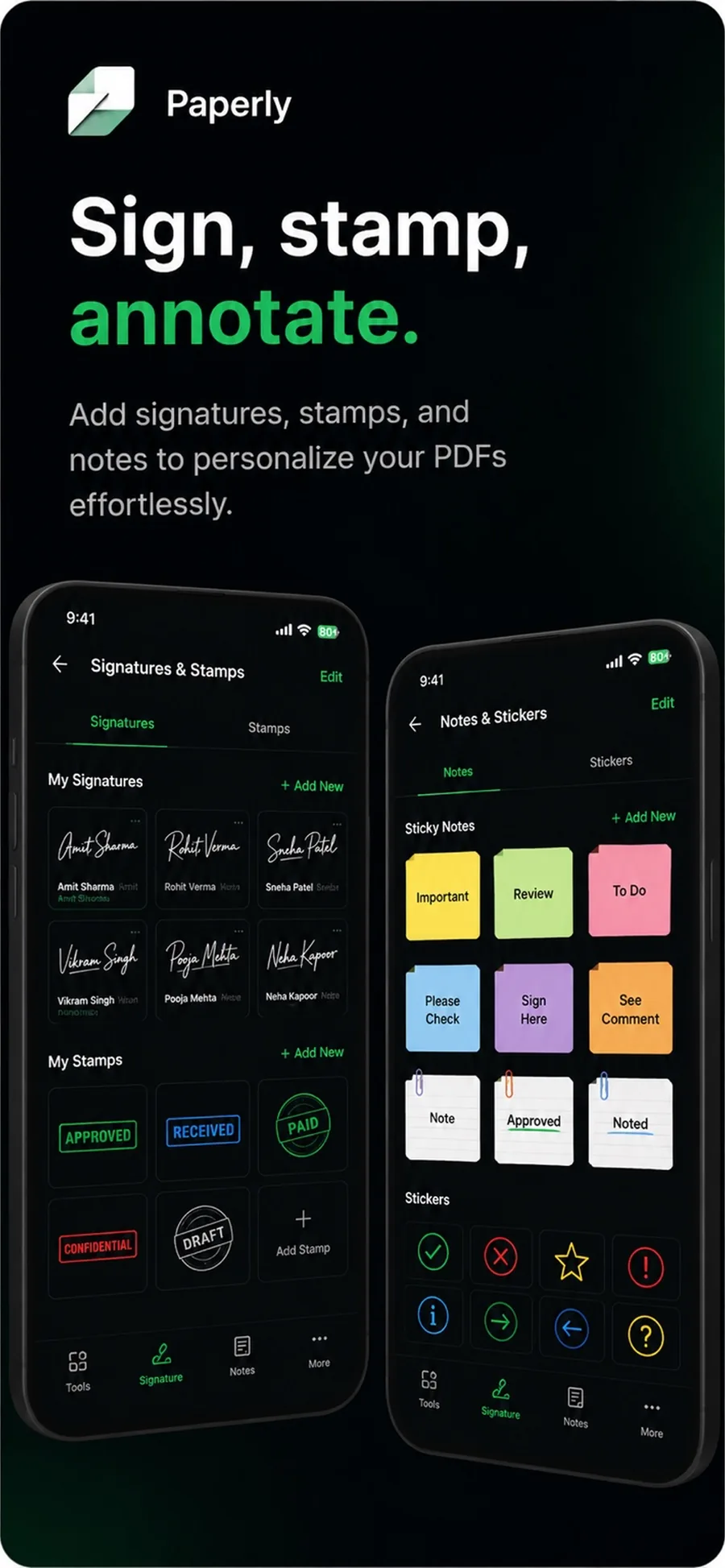
PDF annotation means adding marks on top of a document — highlights, notes, underlines, stamps — without changing the original text. Paperly's markup tools work on any document in the library and are saved with it, locally.
When you reach for it
- Reviewing a contract and flagging the clauses that need changes
- Studying from a PDF and highlighting as you read
- Approving a draft with a stamp or a dated note
- Returning a form with corrections marked instead of a long email
How Paperly does it
- 01
Open and read
Any PDF in the library opens in the editor, where annotation tools sit next to the page.
- 02
Highlight and note
Drag highlights across the passages that matter and pin notes where a reader should stop and look.
- 03
Export with the markup
Annotations travel with the exported PDF, so the recipient sees exactly the marks you made.
Questions people ask
Yes. Highlights, notes, and stamps are written into the exported PDF, so they appear in standard readers — no Paperly required on the other end.
Yes. Markup and signatures live in the same editor, so a reviewed document can be annotated, signed, compressed, and sent in one pass.
Annotations stay editable inside Paperly until you export. Adjust or delete them in the editor; exported copies keep whatever markup was in place.
Related features
Sign PDF
Sign PDF documents on iPhone or PC with no account.
ExplorePDF Editor
Paperly is an on-device PDF editor for Windows and iPhone: merge and split PDFs, reorder pages, annotate, add signatures, and compress files privately.
ExploreOCR
Paperly's on-device OCR turns scanned documents and photos into searchable, selectable text without internet or cloud uploads.
Explore
Try pdf annotation where it runs best.
Paperly for iPhone — private, on-device, and free to download.