Scan document to PDF
Scan to PDF
Typical scan-to-PDF workflows require juggling multiple disjointed tools: taking camera snapshots, sending photos to a laptop, converting them on an online website, and manually renaming files. Paperly replaces that friction with a unified, instant scan to PDF workflow: point your camera at consecutive pages, review real-time boundary crops, reorder pages with drag-and-drop, and generate a publication-ready PDF in seconds.
What it is
A scan-to-PDF workflow is the complete end-to-end process of transforming multi-page physical paperwork into an organized, searchable digital PDF. In Paperly, this workflow is fully integrated on-device: real-time camera framing, perspective straightening, automatic page sequencing, offline text recognition, and instant local PDF assembly with no cloud uploads or waiting queues.
When you reach for it
- Scanning multi-page legal contracts, agreements, or leases into a single structured PDF
- Running an expense report workflow by digitizing a stack of receipts into one chronological document
- Converting paper intake forms, medical questionnaires, or tax worksheets into digital PDFs
- Archiving multi-chapter class notes, lecture handouts, or study packets into searchable PDFs
- Scanning physical book excerpts or articles for academic citation and digital highlighting
How Paperly does it
- 01
Rapid multi-page capture
Aim your camera at each page in sequence. Paperly's auto-capture engine detects paper corners, snaps the shutter when steady, corrects perspective, and adds each page to your working queue immediately.
- 02
Review and drag-and-drop workflow
Review captured thumbnails at a glance. Drag pages to correct sequence, rotate upside-down sheets, or retake any blurry pages without disrupting the rest of the document.
- 03
Offline OCR & PDF assembly
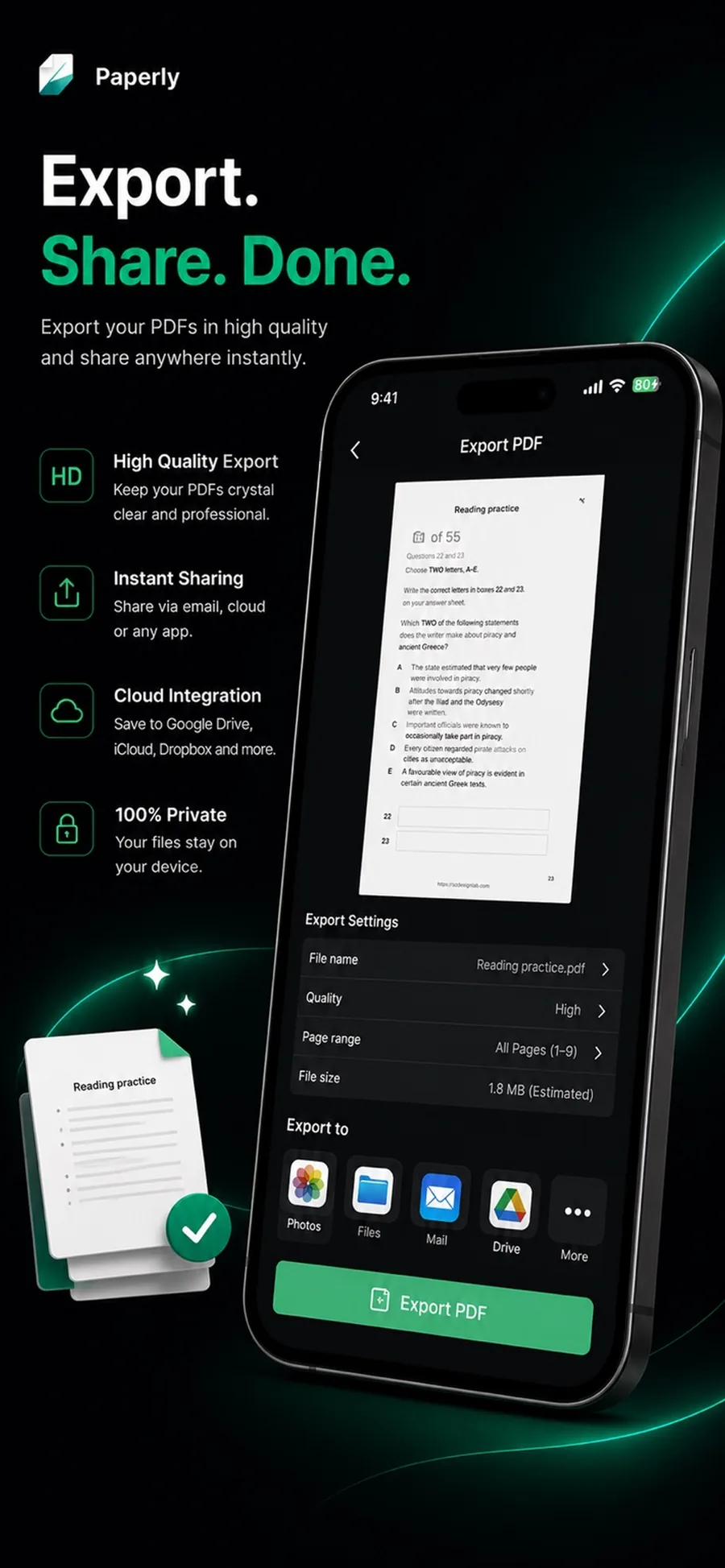
On-device neural OCR processes the scanned pages in the background, embedding a hidden text layer. Choose compression levels and export your finished PDF via AirDrop, Mail, Files, or local storage.
Questions people ask
Open Paperly, select Scan, and point your camera at page one. The app automatically crops and saves page one, then stays in capture mode so you can immediately scan page two, three, and beyond. Once all pages are captured, you can drag to reorder, apply color or B&W filters, and export as one single unified PDF.
Yes. Every step of the scan-to-PDF workflow—including edge detection, image enhancements, optical character recognition, and PDF compilation—runs locally using your device's processor. No internet connection is ever required.
There is no artificial page limit. Whether you are scanning a 2-page invoice or a 60-page manual, Paperly processes multi-page documents smoothly based solely on your device's available local memory.
Yes. You can reopen any saved document from your Paperly library or import a PDF from Files, and use the 'Add Pages' action to scan new pages directly into the existing file.
Related features
PDF Scanner
Paperly is a PDF scanner app for your device with automatic edge detection, cleanup filters, on-device OCR, and local storage.
ExploreOCR
Paperly's on-device OCR turns scanned documents and photos into searchable, selectable text without internet or cloud uploads.
ExploreMerge PDF
Merge PDF files on your device with Paperly: combine scans and existing PDFs, arrange the page order, and export one file — processed locally.
ExploreID Card Scanner
Scan ID cards, driver's licenses, and identity documents to PDF on your iPhone or PC.
Explore
Try scan to pdf where it runs best.
Paperly for iPhone — private, on-device, and free to download.