Split PDF files
Split PDF
A 60-page statement when you need page 12. A combined scan when one recipient should only see one section. Splitting keeps sharing precise — and in Paperly it happens where the document already lives.
What it is
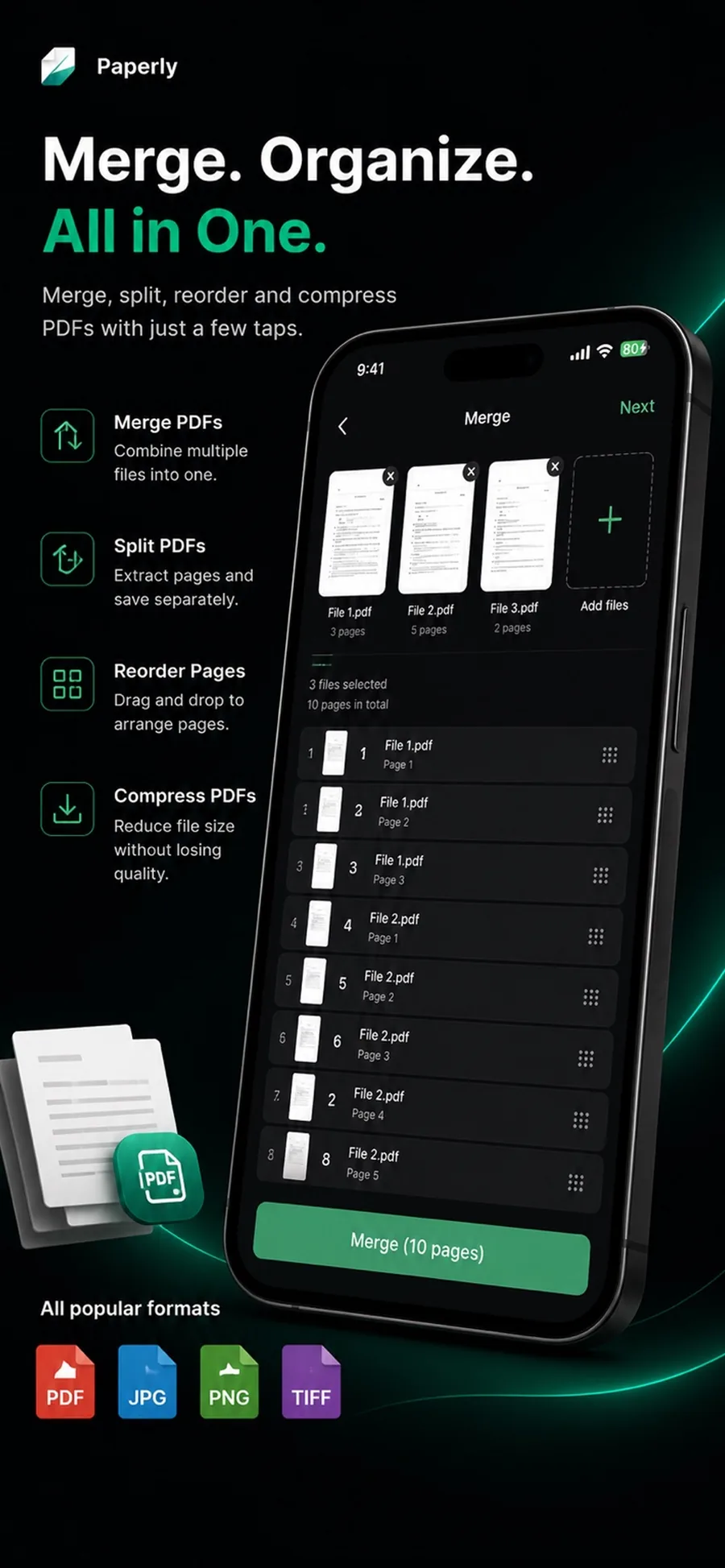
Splitting a PDF means taking selected pages out of a larger document and saving them as their own file. Paperly splits PDFs locally: open the document, mark the pages to keep or remove, and export the smaller PDF — without uploading the original anywhere.
When you reach for it
- Only one page of a long statement should be shared
- A merged scan needs to be broken back into separate documents
- Confidential pages must come out before a file is forwarded
- A large PDF is easier to send as a few smaller ones
How Paperly does it
- 01
Open the document
Any PDF in your library opens as a page grid, so the whole document is visible at once.
- 02
Choose the pages
Extract the pages you need into a new document, or remove the pages that should not ship. Reorder what remains.
- 03
Save the smaller file
Export the extracted pages as their own PDF. The original document stays intact in your library.
Questions people ask
No. Splitting produces a new document from the pages you select. The source PDF remains in your library until you delete it yourself.
You can pick any combination of pages — consecutive or scattered — and they export as one new PDF. Repeat the flow to produce multiple extracts.
Yes. Because splitting runs on the device, confidential pages are not sent to a server to be processed. Removed pages simply never enter the exported file.
Related features
Merge PDF
Merge PDF files on your device with Paperly: combine scans and existing PDFs, arrange the page order, and export one file — processed locally.
ExplorePDF Editor
Paperly is an on-device PDF editor for Windows and iPhone: merge and split PDFs, reorder pages, annotate, add signatures, and compress files privately.
ExploreCompress PDF
Compress PDFs on your device with Paperly: shrink scanned documents to an emailable size while keeping text readable — processed locally, no uploads.
Explore
Try split pdf where it runs best.
Paperly for iPhone — private, on-device, and free to download.